Step 1. 별도의 실습용 폴더와 파일 생성
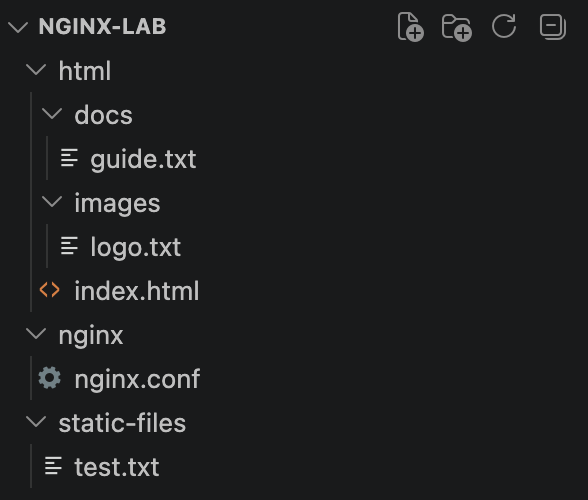
실습 폴더인 nginx-lab 별도의 디렉터리를 하나 추가한다.
mkdir -p static-files
그리도 파일도 하나 생성한다.
echo "This file is served by alias." > static-files/test.txt
Step 2. alias 설정 사용해보기
nginx.conf 파일을 다음과 같이 수정한다.
events {}

http {
    server {
        listen 80;

        root /usr/share/nginx/html;
        index index.html;

        location / {

        }
        location /static/ {
            alias /usr/share/nginx/static-files/;
        }
    }
}
기존 실습 컨테이너가 남아 있다면 삭제한다.
docker rm -f my-nginx
그리고 다음 명령어를 통해 새로 추가된 폴더를 마운트하여 컨테이너를 실행한다.
docker run -d \
--name my-nginx \
-p 8080:80 \
-v $(pwd)/html:/usr/share/nginx/html \
-v $(pwd)/static-files:/usr/share/nginx/static-files \
-v $(pwd)/nginx/nginx.conf:/etc/nginx/nginx.conf \
nginx
Step 3. 브라우저에서 추가된 실습 파일 요청
브라우저에서
http://localhost:8080/static/test.txt를 요청하면
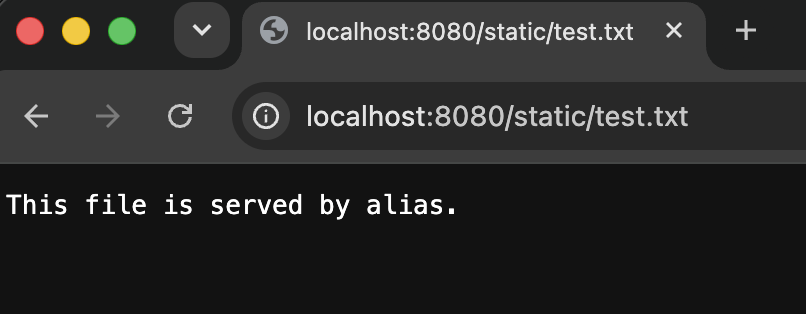
정상적으로 접속되는 것을 확인할 수 있다.
그런데 실제 실습 파일 test.txt은 /usr/share/nginx/static-files 폴더에 존재하는데
static/test.txt에 대한 요청을 처리하여 파일의 내용이 정상적으로 출력되는 것을 보고 의문이 들 수도 있다.
그 이유는
요청인
/static/test.txt에 대하여
Nginx가 /static/ 부분을
/usr/share/nginx/static-files/로 대체하여
최종 파일 경로가
/usr/share/nginx/static-files/test.txt가 되기 때문이다.
+ 그리고 추가적으로
alias를 사용할 때는 location의 마지막 /와 alias 경로의 마지막 /를 일치시키는 습관을 들이는 것이 좋다.
예를 들어 디렉터리를 매핑할 때는 다음과 같이 작성하는 것이 일반적이다.
location /static/ {
    alias /usr/share/nginx/static-files/;
}
이렇게 하면 URL과 실제 디렉터리의 대응 관계가 명확해진다.
Step 4. root와 alias를 비교해보기
- root의 경우
location /static/ {
    root /usr/share/nginx/html;
}
에 대하여
/static/test.txt
      │
      │ 그대로 이어 붙임
      ▼
/usr/share/nginx/html/static/test.txt (해당 경로에 파일이 존재하지 않기 때문에 404 not found 오류 발생)
- alias의 경우
location /static/ {
    alias /usr/share/nginx/static-files/;
}
/static/test.txt
│
│ /static 부분을
│ alias 경로로 대체
▼
/usr/share/nginx/static-files/test.txt
즉, 결과적으로
root는 매칭된 URI를 root 경로 뒤에 붙이고,
alias는 매칭된 location을 지정된 경로로 치환하는 방식으로 이해할 수 있다.
'개발 > Docker' 카테고리의 다른 글
| [Docker] Docker Compose (0) | 2026.08.11 |
|---|---|
| [Docker] Dockerfile (0) | 2026.08.10 |
| [Nginx] location 설정 (0) | 2026.08.10 |
| [Docker] Nginx 설정 파일인 nginx.conf 이해하기 (0) | 2026.08.06 |
| [Docker] Volume Mount 실습 (0) | 2026.08.06 |